Sharpen an Image Online
This free image sharpener makes a slightly soft photo look crisper. Choose a photo above and it's sharpened straight away; adjust how strong the effect is, then download it as a JPG or PNG. Everything happens in your browser, so your photo is never uploaded.
What Sharpening Does (and Doesn't)
Sharpening adds contrast along the edges in a photo: the light side of an edge gets a little lighter, and the dark side a little darker. Fur, hair, eyelashes, text and leaves look more defined. Here's a close-up of a cat at full size:
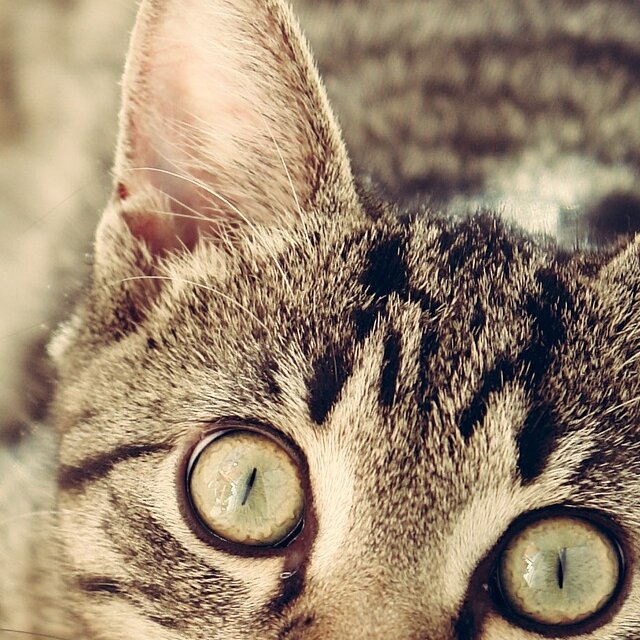
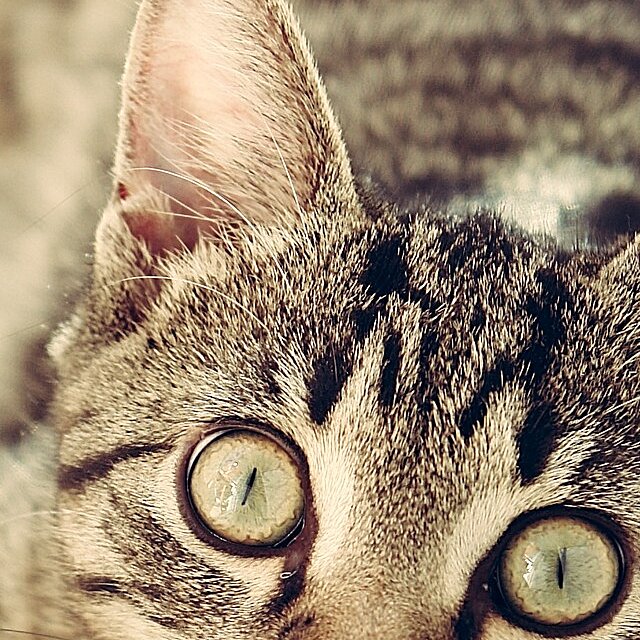
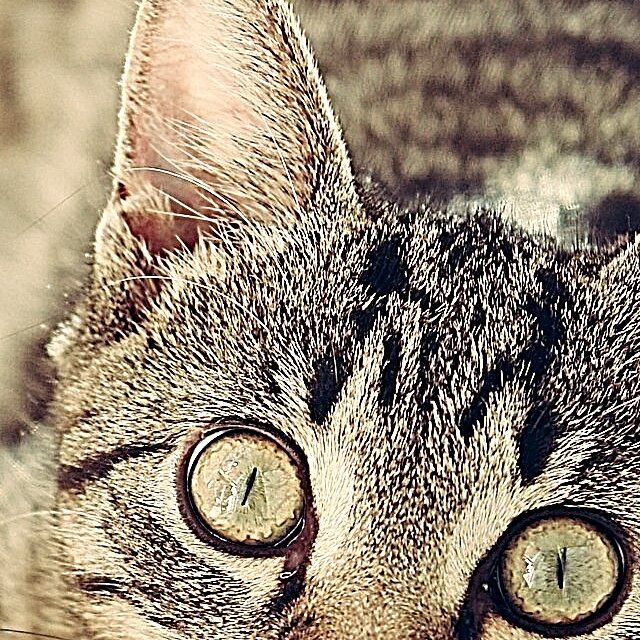
It works best on photos that are nearly sharp: a little soft from a phone camera, a scan, or being resized. It can't fix a photo that's really blurry, out of focus or shaken. The detail isn't in the picture, and no sharpening filter can put it back; turning it up only adds gritty outlines, as in the last example. (Apps that promise to "unblur" a photo use AI to invent new detail. This tool doesn't: it only works with what's there.)
How to Sharpen a Photo
- Scroll up and choose your photo, or drag and drop it there. You can also try one of the sample cats.
- The photo is sharpened with settings that suit most photos. Change them
if you like:
- Amount is how strong the sharpening is. 100% is a good start; go lower for portraits, higher for a soft scan.
- Radius is how wide the edges are, in pixels. Keep it small (1 to 2) for fine detail like hair and text. A bigger radius makes large shapes stand out more, but also makes halos easier to see.
- Click Done, then download your photo as a JPG or PNG.
On a big photo, the preview is shrunk to fit your screen, which hides some of the effect: it's easier to judge on the downloaded photo, or on a close crop. If you see bright outlines around edges, or the photo looks grainy, turn the amount down.
Tips for a Sharper-Looking Photo
- Sharpen last. Shrinking a photo softens it, so resize or crop first, then sharpen the result. That's what photographers do before posting a picture online.
- Less is more. A little sharpening looks natural. When the effect is obvious, it's usually too much.
- Dull, not blurry? If a photo looks flat rather than soft, try more contrast with the brightness and contrast sliders instead.
- Want the opposite? To soften part of a photo, or hide a face or a number plate, blur it.
How Does It Work?
This tool uses an unsharp mask, the same method as the sharpening filters in Photoshop and GIMP. Despite the name, it sharpens: it makes a blurred copy of the photo, subtracts it from the original to find the edges, and adds those edges back on top. Amount sets how much is added back, and radius how much the copy is blurred. Only the brightness is sharpened, not each color separately, so edges don't get colored fringes.
Private by Design
Your photo stays on your device: sharpening runs in your browser, with no upload, no account and no watermark.