Make a Photo Square Without Cropping
This free tool makes any image square without cutting anything off. It keeps your whole photo, centers it, and fills the empty space with a blurred copy of the photo, a solid color or a mirror image of the photo's edges. Choose a photo above, pick a background, and download the square image as a JPG or PNG. It all happens in your browser, so your photo is never uploaded.
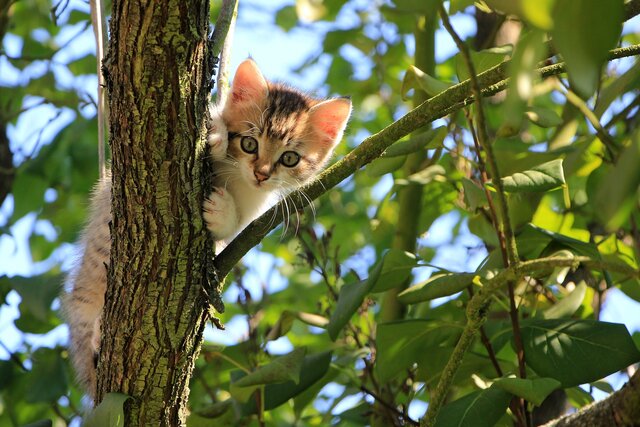
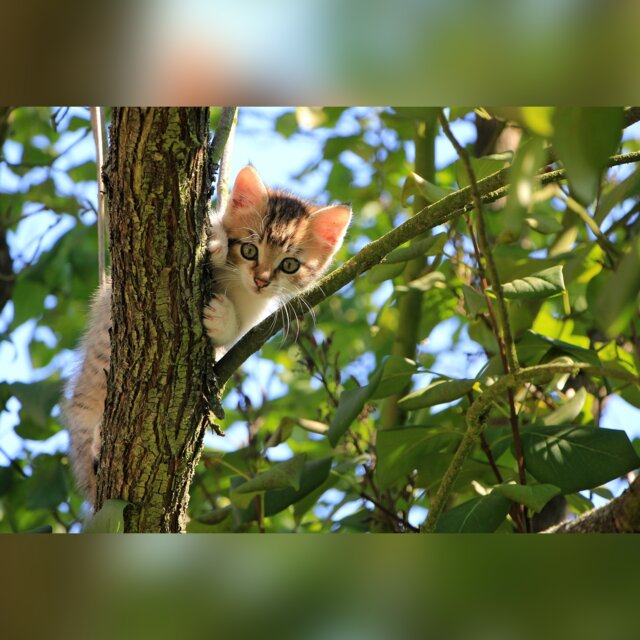
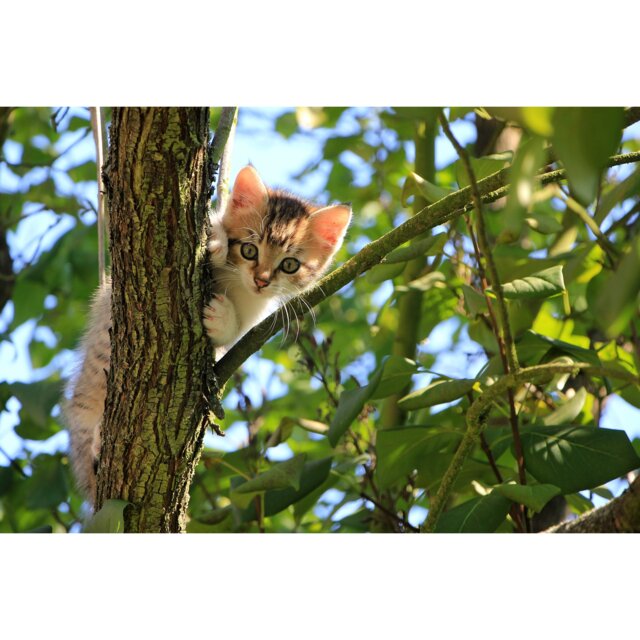
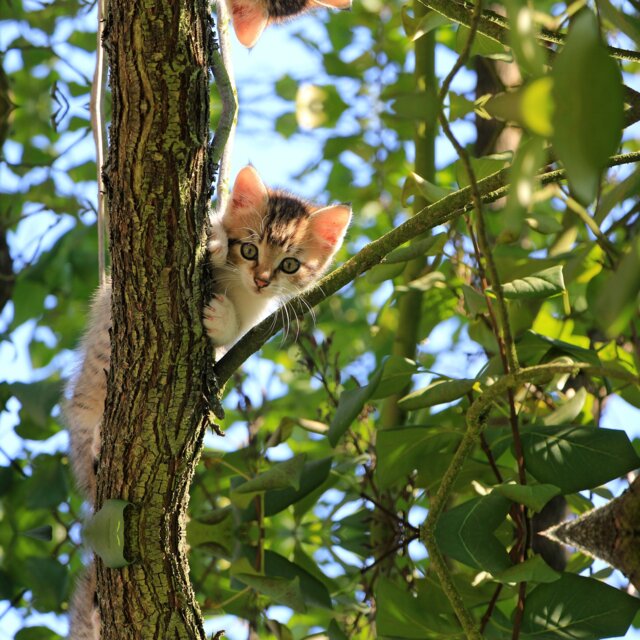
The square's sides are as long as the photo's longest side, so the photo keeps its full size and resolution: a 1920 × 1280 photo becomes a 1920 × 1920 square, with the extra space above and below it. A tall photo gets the extra space on its left and right.
How to Make an Image Square
- Scroll up and choose your photo, or drag and drop it there. You can also try one of the sample cats.
- Choose a background. Blur fills the space with a soft, zoomed-in copy of your picture, so the colors match. Color fills it with white, or tap the color button to pick any other color. Reflect mirrors the photo at its edges, so it carries on without a seam.
- Click Done, then download your square image.
Why Make a Photo Square?
- Instagram shows posts in a square grid. Posting a wide or tall photo as a square keeps all of it, instead of letting the app cut off the edges.
- Profile pictures on most sites and apps are square (and often shown as a circle). Making the photo square first means you decide how it's framed.
- Product photos and listings look tidier when every image is the same shape, on a white background.
- Album art, thumbnails and app icons usually need a 1:1 image.
Which Background Should I Use?
A blurred background is the look you often see on Instagram and in phone galleries: the bars around the photo pick up its colors, so they don't stand out. A white or black background looks cleaner and suits product shots, logos, screenshots and printed pictures. For a transparent background, pick a solid color, lower its opacity to zero and save as PNG.
A reflection continues the photo past its edges, as if it were reflected in water or a mirror. It suits landscapes, skies, sea, grass and patterns, where the mirrored part looks like more of the scene. It suits portraits less: anything touching the edge, like the top of a head, shows up again upside down, and text comes out backwards. To mirror a photo in just one direction, or as far as you like, use the reflect tool.
Tips
- Don't mind losing the edges? Crop the photo to a square instead.
- Need an exact size, like 1080 × 1080 for Instagram? Resize the square image afterwards.
- Want an even frame on all four sides? Add a border to the square photo.
- Posting a panorama? Split it into squares for a swipeable carousel instead.
Private by Design
Your photo stays on your device: it's made square in your browser, with no upload, no account and no watermark.