Crop an Image to a Circle
This circle crop tool cuts a round picture out of any photo. Choose a photo above, drag the circle over the part you want to keep, and click Done. You get just the circle, with the corners transparent or filled with a color of your choice. It's the quickest way to make a round profile picture, an avatar, or a round photo for a slide or a website, and your photo never leaves your device.

How to Crop a Picture Into a Circle
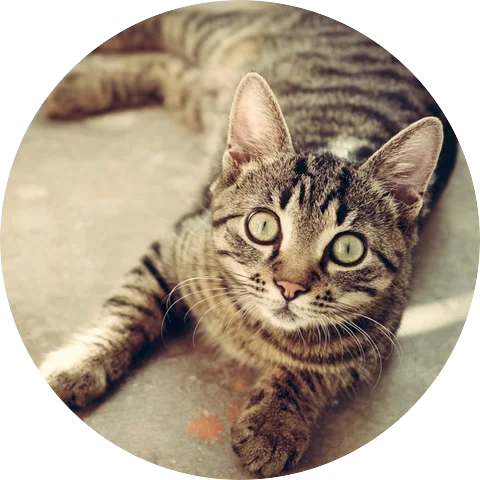
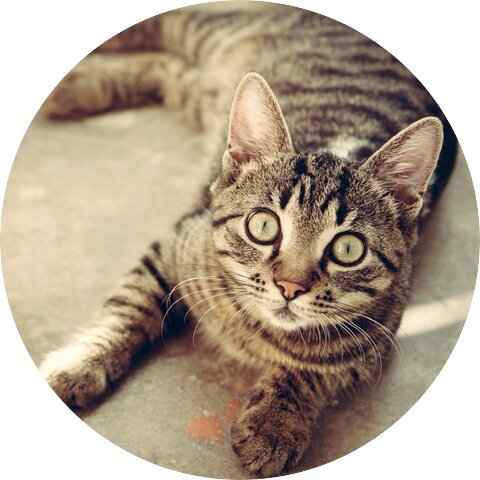
- Scroll up and choose your photo, or drag and drop it there. You can also try one of the sample cats.
- A circle appears in the middle of the photo. Drag it to move it, and drag its handles to make it bigger or smaller. Everything outside it is dimmed.
- Pick what goes in the corners: Transparent or a Color.
- Click Done, then download your round image. Download it as a PNG to keep the corners see-through.
Transparent or Colored Corners?
A picture file is always a rectangle, so a round image is really a square with its corners cut away. What goes in those corners depends on where the picture is going:
- Transparent corners let whatever is behind the picture show through: a slide, a web page, a document or a design. Save it as a PNG, since JPG files can't be transparent. (Choose JPG and the corners turn white.)
- A color fills the corners with white, black or any other color, for places that don't handle transparency well, or to match the background the picture will sit on.
Circle or Oval
In Circle mode the box stays square, so you always get a perfect circle, however you drag the handles. Switch to Oval to stretch it into an ellipse: handy for a tall portrait, a vintage cameo look, or a face that a circle would crop too tightly.
Round Profile Pictures
Most apps (WhatsApp, Instagram, LinkedIn, Discord, Slack, Zoom...) show profile pictures as circles, and crop your photo themselves when you upload it. Cropping it to a circle first lets you choose exactly what's in the frame, see how it will look, and use the same round picture everywhere, including in places that would show the square, such as an email signature or your own website.
For a profile picture, keep the face in the middle with some space around it: a circle cuts off more of the corners than you'd expect. If the photo is much bigger than it needs to be, you can resize it afterwards; a few hundred pixels across is plenty for most apps.
Related Tools
- To crop to a rectangle instead, use the crop tool.
- Want to keep the whole photo and only soften its corners? Use Round the Corners.
- To draw a circle on a photo, around something you want to point out, use Add a Circle.
- To put a square photo in a frame first, make it square or add a border.
Private by Design
The circle crop happens in your browser: your photo is never uploaded, and there's no account, no watermark and nothing to install.