Add Film Grain to a Photo
Digital photos can look too clean. This tool adds film grain: the fine, random texture of photos shot on film, which gives a picture a softer, analog, slightly nostalgic feel. Choose a photo above, set how much grain you want and how coarse, and download it. You can also use it to add plain noise to an image.
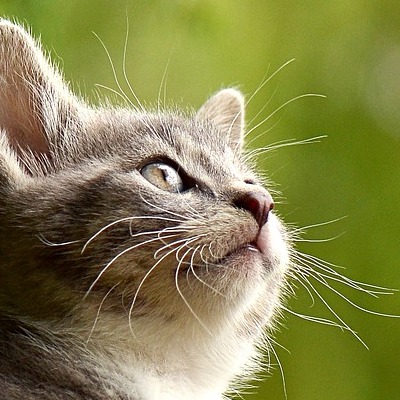
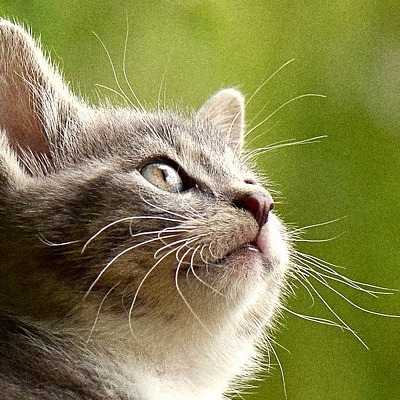
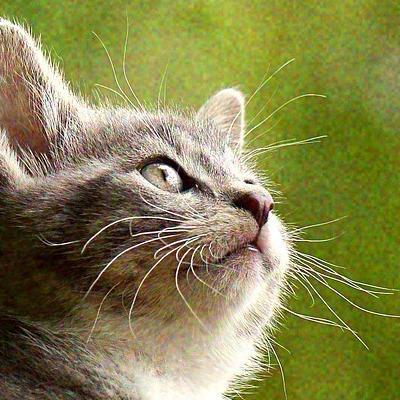
These are close-ups at full size. On a whole photo shrunk to fit a screen, grain looks finer and subtler.
How to Add Grain to a Photo
- Scroll up and choose your photo, or drag and drop it there. You can also try one of the sample cats.
- Drag the Amount slider. 30% (where it starts) is a gentle film texture; 60% and up is strong grain, like fast film pushed in the dark.
- Pick the Grain size, Fine, Medium or Coarse, and Mono or Color noise.
- Click Done, then download your photo as a JPG or PNG.
What Is Film Grain?
Film records a picture in tiny crystals of silver (or dye clouds in color film), scattered at random. Up close, they show as a speckled texture: the grain. Fast film, made for low light, has bigger crystals and coarser grain. Digital cameras have no grain, but they have noise, which looks similar but tends to show as blotches of color in dark areas.
This tool adds a random speckle to each pixel, strongest in the midtones and weakest in pure black and white, the way grain shows on film. The pattern is the same every time for the same photo and settings, so what you see in the editor is what you download.
Mono or Color, Fine or Coarse
- Mono grain only lightens and darkens, like black and white film, and looks the most natural on any photo.
- Color noise speckles each color separately, like a digital camera at high ISO or old color film.
- Fine grain is one pixel per grain: subtle on big photos. Medium and Coarse make clumps of 2 and 3 pixels that stay visible when the photo is shown smaller.
Tips for a Film Look
- Grain looks most natural on a photo that isn't too sharp. Add it last, after resizing, so it isn't smoothed away.
- Pair it with black and white, sepia or a dark vignette for an old photograph.
- Grain hides small flaws: a little banding in a sky, or skin that was smoothed too much.
Private by Design
Your photo stays on your device: the grain is added in your browser, with no upload, no account and no watermark.