Compress an Image: Make a Photo's File Smaller
This image compressor makes a photo's file smaller, so it fits under an upload limit, attaches to an email, or loads faster on a website. Choose a photo above and you'll see the new file size straight away, in KB or MB, next to the original's. Lower the quality or the size until it's small enough, check the preview still looks right, and download it as a JPG.
Unlike most compressors, this one runs in your browser: your photo is never uploaded, so it's as quick on a slow connection as on a fast one, and nothing leaves your device.
How to Reduce an Image's File Size
- Scroll up and choose your photo, or drag and drop it there. JPG, PNG, HEIC (from an iPhone), WebP and GIF all work.
- Drag the Quality slider. It starts at 70%, which shrinks most photos a lot with no visible change. The new file's size, next to the original's, updates as you go.
- Still too big? Drag the Size slider down to make the photo smaller: 50% halves its width and height.
- Click Done, then download your compressed photo. It's named after the original with "-compressed" added, so it won't replace it.
How Much Quality Do You Lose?
Here's a close-up of a 1920 × 1776 photo at full size, saved at three qualities (the sizes are for the whole photo):
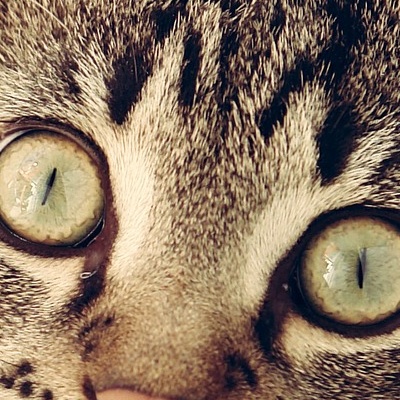
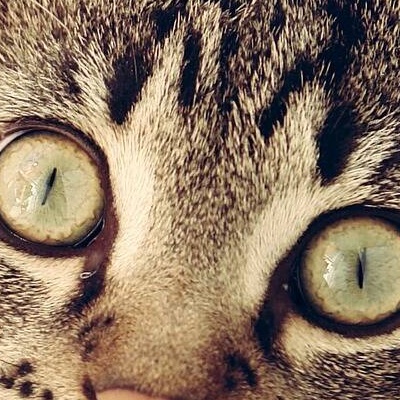
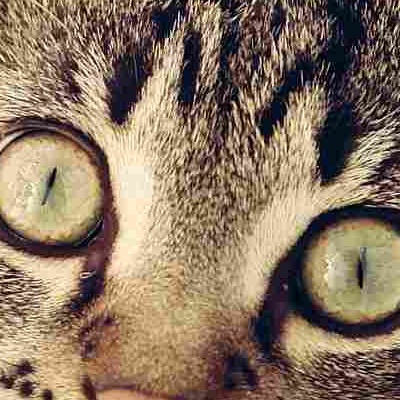
At 70% the file is less than half the size and you'd be hard pressed to tell the difference. At 15% it's a seventh of the size, but the fur has turned blotchy and you can see square blocks. That's how JPG compression works: it throws away fine detail your eye is least likely to miss, a little at high quality and a lot at low quality. Most photos look fine down to about 60%; below 40%, check the preview closely, especially faces, text and smooth skies.
Quality or Size: Which to Lower?
There are two ways to make a photo's file smaller, and they work best together:
- Lower the quality to keep every pixel but store each one less precisely. Good for small savings, and when you need the full size.
- Lower the size (fewer pixels) for big savings. A phone photo is often 4000 pixels wide or more, while a laptop screen shows about 1500 and a phone about 1200. Halving the width and height takes the file down to roughly a quarter. For an exact width and height, use the resize tool first.
For example, the photo above at 70% quality is 325 KB at full size, and about 160 KB at 1280 pixels.
Compress to 100 KB, 50 KB or Less
Forms for job applications, exams and government ID often ask for a photo under a size such as 100 KB or 50 KB. Start by lowering the Size (800 pixels across is plenty for an ID photo, and the editor shows the new width and height), then lower the quality until the file size shown is under the limit. If it still won't fit, crop away the background: fewer pixels, smaller file.
PNG, Screenshots and Transparency
The compressor always saves a JPG, the format that makes photos smallest. A PNG photo usually shrinks enormously, often to a tenth of its size. JPG has no transparency, though, so see-through parts turn white. For a logo or a screenshot with sharp text, keep the quality high (85% or more) so the edges stay crisp, or keep it as a PNG with the image converter.
Sometimes the compressed file is no smaller than the original, because the original was already well compressed. The editor tells you; lower the quality or size, or just keep your original.
Private by Design
Online compressors usually upload your photo to their server, compress it there, and send it back. This one does the work on your device, in your browser: no upload, no account, no watermark and no limit on how many photos you compress.