Halftone Generator
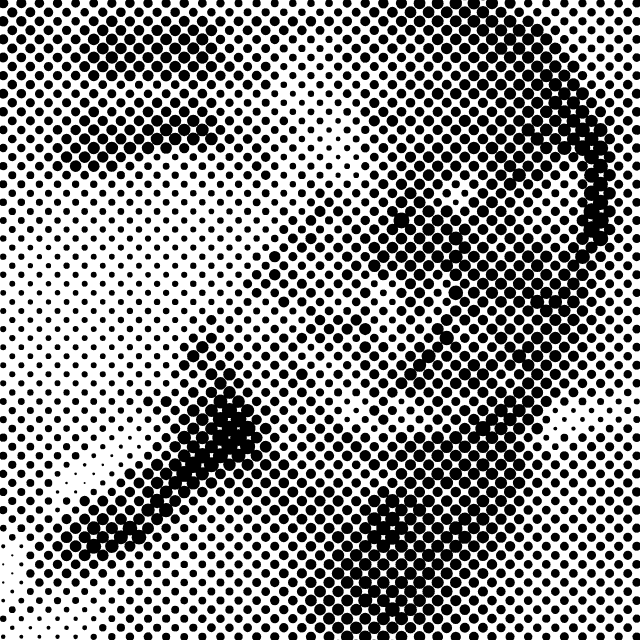
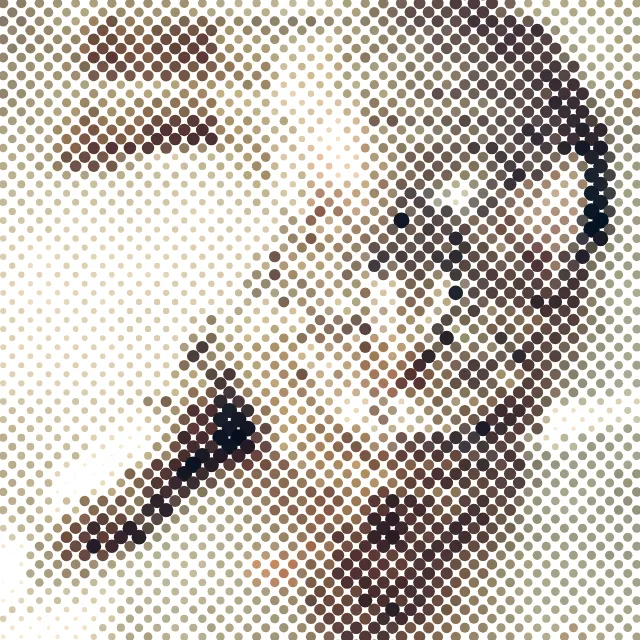
This tool turns a photo into a halftone: a grid of dots that are big where the photo is dark and small where it's light, the way newspapers, magazines and comic books print pictures. Choose a photo above, pick the dot size and Black or Color dots, and download the result. It's a quick way to get a retro print, comic or pop art look, and it runs in your browser.
How to Make a Halftone
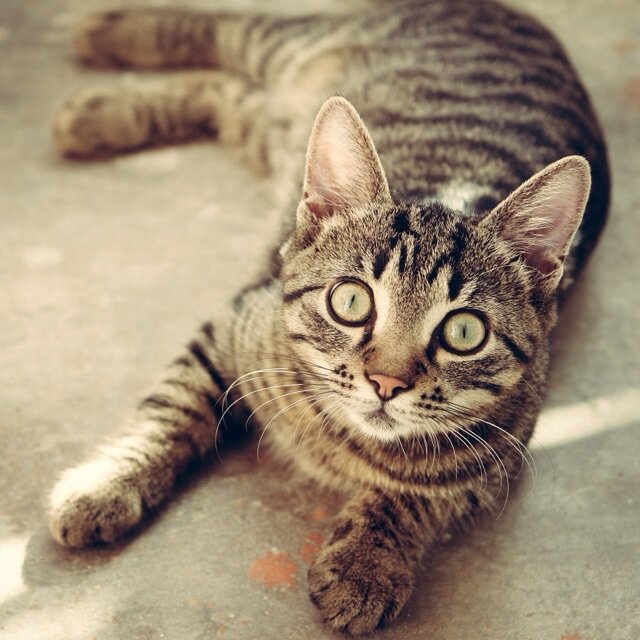
- Scroll up and choose your photo, or drag and drop it there. You can also try one of the sample cats.
- Drag the Dot Size slider. It's the distance between dots, as a percentage of the photo's shorter side: small dots keep detail, big dots make a bold, graphic pattern.
- Choose Black dots, like newsprint, or Color dots, each in the color of the photo beneath it.
- Click Done, then download your image as a JPG or PNG.
What Is a Halftone?
Printing presses can't print gray: a spot on the paper either gets ink or it doesn't. To print a photo, printers break it into tiny dots of solid ink, bigger in the shadows and smaller in the highlights. From a normal reading distance your eye blends them, and you see shades of gray. Look at a newspaper photo with a magnifying glass and you'll find the dots.
This tool does the same thing digitally. It lays a grid over the photo, turned 45° like a printer's screen (rows of dots at an angle are less noticeable than straight ones), measures how dark the photo is under each dot, and draws the dot so that it covers that share of its cell. In the darkest parts, the dots grow until they merge into solid black.
Black or Color Dots
- Black is the classic newspaper look: a black and white print, all graphic contrast. It suits portraits, posters and anything you want to screen print or engrave.
- Color paints each dot in the color of the photo under it, on white. The look of vintage comic books and pop art. (Real color printing lays four screens of cyan, magenta, yellow and black dots over each other; this is a simpler, bolder version.)
Choosing a Dot Size
Dots that are too small disappear when the image is shrunk to fit a screen, and the halftone just looks like a slightly grainy photo. For an effect people can see, make the dots bigger the smaller the image will be shown: 1-2% for a full-screen picture or a print, 3-5% for a thumbnail, a profile picture or a bold poster. If your photo is very large, resizing it first gives the same effect.
For a bolder black and white result, raise the contrast with the brightness and contrast tool before you make the halftone. For a different retro effect, see the pixelate tool, which makes squares instead of dots.
Private by Design
Your photo stays on your device: the halftone is drawn in your browser, with no upload, no account and no watermark.